In this article, we are going to look at how to add a component instance to a page layout.
For some types of components, instances are created at the time of adding them to the layout. However, for some types of components, we need to create them before we can add them or place them in the layout. For this reason, I am going to review once again where they are created.
A Review of where Component Instances are Created
Before we look at how to add the component instances to your layout, we will review where you can create them again. I think this needs to be clear because in some cases creating and adding is done in different parts of the UI.
Template Components
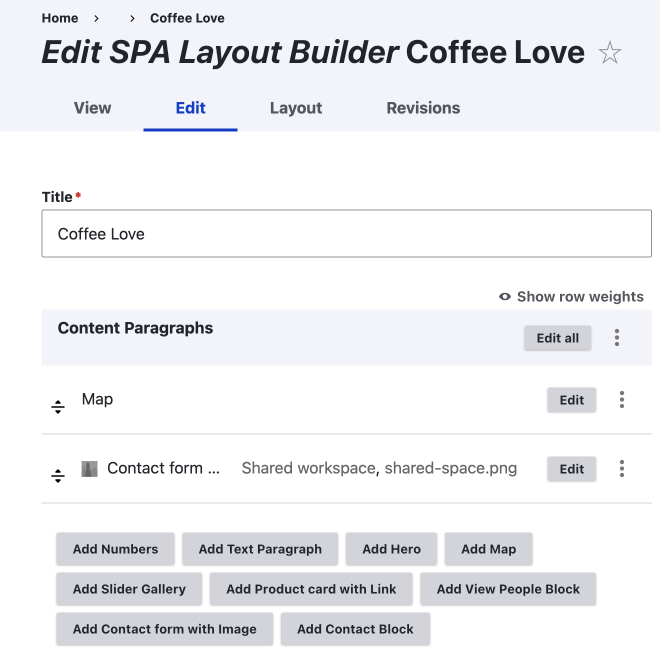
I hope It is clear from the last part on creating and editing component instances that there can be three ways to create template component instances for Layout Builder, and this also influences if they are re-usable. In summary, they are:
- The node edit page (non-reusable)
- The custom block library (global/reusable)
- The layout tab using add block button and tray (inline/non-reusable) - Created at time of adding.
All components need to be edited where they were created.
Dynamic components
Dynamic components are somewhat special, as they are created dynamically by adding content to a category. The most basic example of a dynamic component is marking content as frontpage, so it will show up in the frontpage component.
To add to a layout, you can do that using the add block button, as discussed in the next section.
Adding the Components to Your Layout
Once we have created component instances, they are added to a layout by using the add block button on the layout page.
The exception, as pointed out above, is an inline custom block component as they are created when adding to a layout and therefore specific to the page and non-reusable; you use the add block button and then create the component instance.
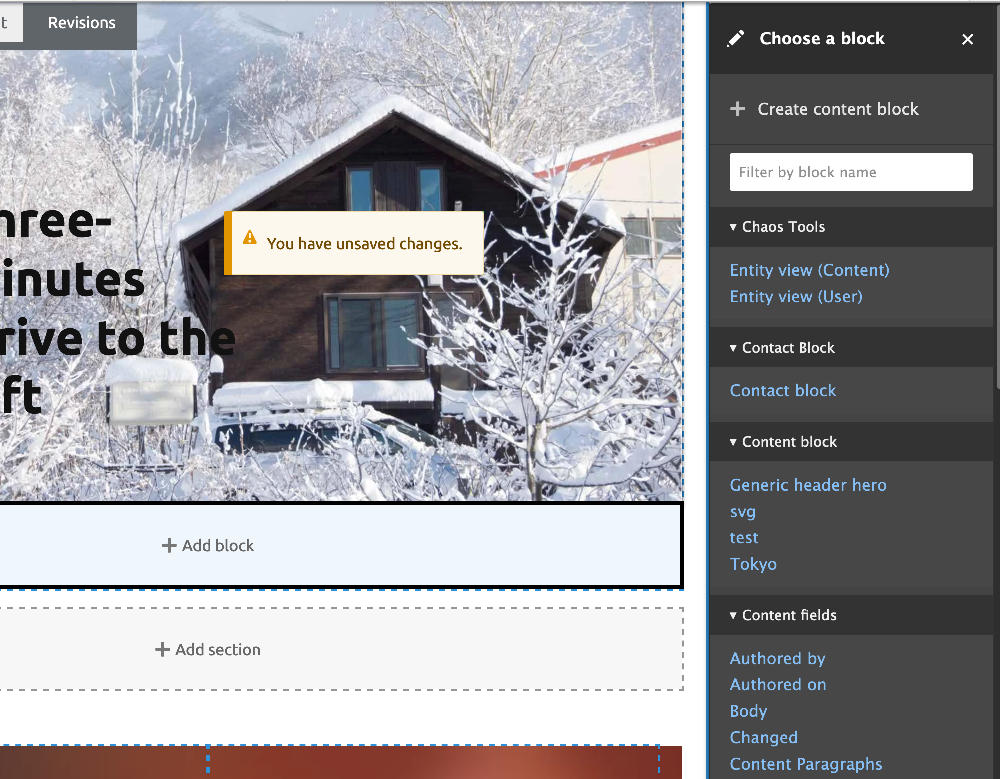
For a well set-up Layout Builder content type, you are best to restrict which blocks/components can be added. The above image shows an unrestricted set-up and therefore the user has access to all content fields and chaos tools which most of the time will be overkill.
To add an inline component instance, use the Create content block button at the top of the chose a block tray.
To create an inline content block, you use the create a content block button, which opens a new tray with all possible content blocks that are allowed.
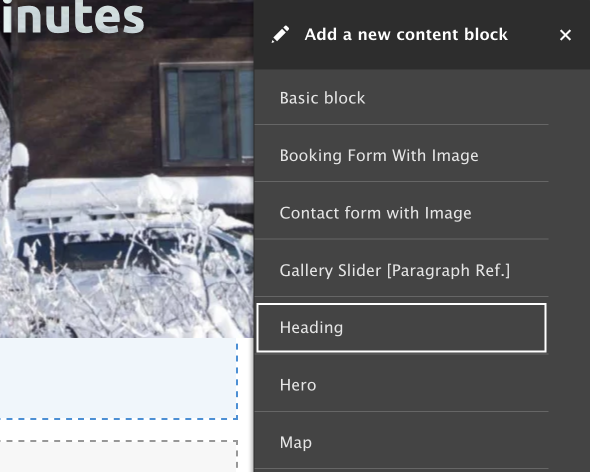
Dynamic components can also be used, components such as View list. These, as stated above, are dynamically created, but are added to a layout using the add block button illustrated above.
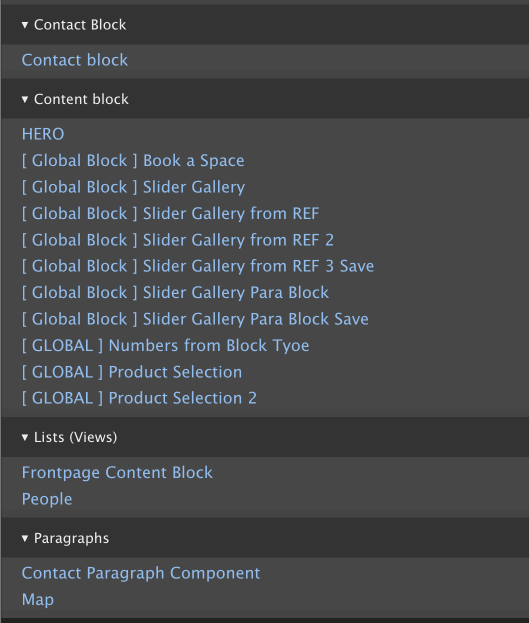
Yes, it is that simple. The add block button is how you add all component instances to a layout. The gotcha with Layout Builder is you need to be aware that some component instances need to be created elsewhere depending on how they are built or set up.
Summary
In this article, we looked at how to add content to your layout. To do this. I first reviewed how you can create content blocks or what I have called component instances; individual unique content blocks. I did this once again so we can understand that creating instances and adding them can sometimes be done in different places. Furthermore, I have seen first hand with users that this can sometimes cause confusion, especially when editing a page layout.
Once, I reviewed the creation of content blocks to use in a layout, I then covered how to add them to your lay-out. Adding content to a layout is extremely easy for users once they understand the process, and for this reason that section was short. That said, we covered the 3 different types of components again so we can see you still need to be aware of how component instance are created.
If you have read the full article series thus far, you may be a little overwhelmed, I certainly am. But I think it is best to understand that to build components is going to be the job of a different person than the person who uses the application to create a page or content. The general roles are site builder/developers and content creator or marketers. For this reason, I draw a conclusion in the next section of this article and then as part of the audit series I have a whole article on an alternative setup solution.
Conclusion: Making a better User Experience
This is the main conclusion in this audit article series, Building Components for Drupal: that if you are building a site for other users, you need to be aware that certain set-ups can lead to confusion for the end users, so you need to think about this when building the site.
And once built, you need to create a user manual or guide. Creating a user manual or guide could be an entire series in itself and is beyond the scope of this series, but is integral in creating the best user experience. That aside, after getting this far in the audit of this particular set up, I have discovered there could be a better way. Let's have a look.
After getting this far in the review and discovering that you can add paragraphs to custom blocks by recreating the content highlight/recommendation list component, I have come to the consensus: That using the Paragraphs Blocks module to convert paragraphs based components created on the node edit form to blocks might not be the best approach.
In the next article, I look a ditching the node edit from all together for creating component instances and then discuss when It might still be a good option to add balance; in the end, as a builder it is up to you to build the best solution for your client and end users.
That's it for this article. If building usable websites using Drupal and other front-end technology is something you want to get better at, I write a newsletter on front-end technology and design and development, with a current focus on Drupal. Sign up below, and see you in the next article. Follow the link below.