Following on from the last article, where we looked at how we can build components for Drupal Layout Builder. In this article, we are looking at how we can create an instance of a component.
In the article, on building components, we concentrated on the technical set up of the components and the implications of the set-up, as with this article we are only looking at where an instance of each component can be created.
Following are tables of each component set up: either as a custom block or as a node entity paragraph reference field, a paragraph on node. We first look at what I classified template components and then look at the dynamic components.
Custom Block Components or Paragraphs Attached to Nodes: Template Components
I have divided the template components into two groups, basic and advanced, and have added some notes about the differences. However, as you will see, their instances are created in the same way.
Basic Template Components
The first group of components are made with basic fields or groups of fields attached to entities.
The entities they are attached are blocks and content nodes.
As you can see, the components created using the Paragraphs module, at this point in this audit, are generally added to the node edit form.
- If a custom block uses a Paragraphs module reference field, it is marked with a (P).
- The custom block that is created using a paragraph reference field, marked with a (P), at this point was the first experimental component created to see if attaching paragraphs to custom blocks was possible and a viable solution. As you will learn later, it is a viable way and possibly a better solution.
| Custom Block | Paragraph on node | |
|---|---|---|
| Number Statistic Panel | - | ✅ |
| Text (Choose Format) | ✅ Basic Block | ✅ Paragraph text |
| Heading | ✅ | - |
| Hero | - | ✅ |
| Slider Gallery | - | ✅ |
| Content Highlight/ Recommendation List | ✅ (P) | ✅ |
| Reviews | - | ✅ |
Advanced Template Components
In this second group, the components use either different entity types, such as the contact entity type, or use fields added from a contributed module, such as the map. Again, you can see that the paragraph-based components, at this point, are created on the node edit form.
| Custom Block | Paragraph on node | |
|---|---|---|
| Map | - | ✅ |
| Booking Form (Contact Block) | ✅ * | - |
| Booking Form (Contact Block) **Views Block variation |
- | ✅ |
| Booking form with Image | - | ✅ |
Notes:
- *Added by Contact Block module, and has its own grouping in the UI and could be considered dynamic.
- **This allows you more control over the forms that will be allowed, however, I will ditch this method in the final components, see Views Block area for information.
Where Template Component Instances are Created
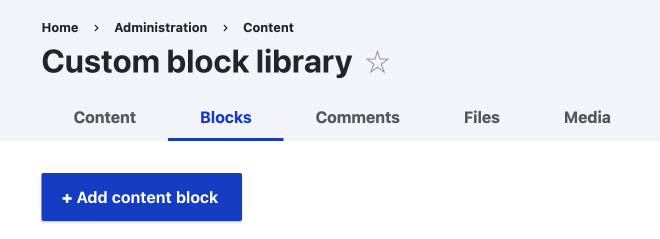
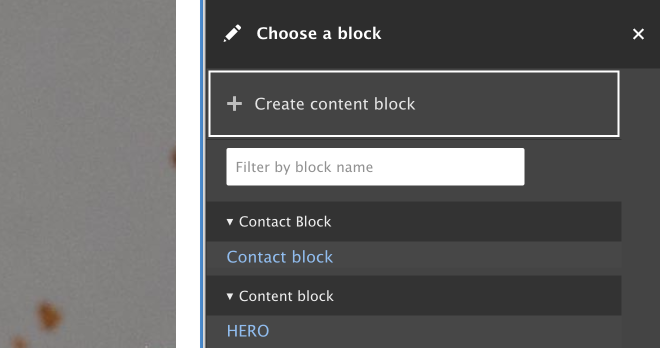
- Custom Blocks can be created as a global block or as an inline block.
- Global Custom block; you need to add and edit it via the block content page.
- Inline Blocks; can only be used once on the page/layout they are created.
- They are created and edited on the layout tab. If removed, they are not available any more. But not deleted until the node is deleted.
- There is work on allowing inline blocks to be converted to global blocks.
- The reason for inline blocks remaining is they are attached to revisions.
- They are created and edited on the layout tab. If removed, they are not available any more. But not deleted until the node is deleted.
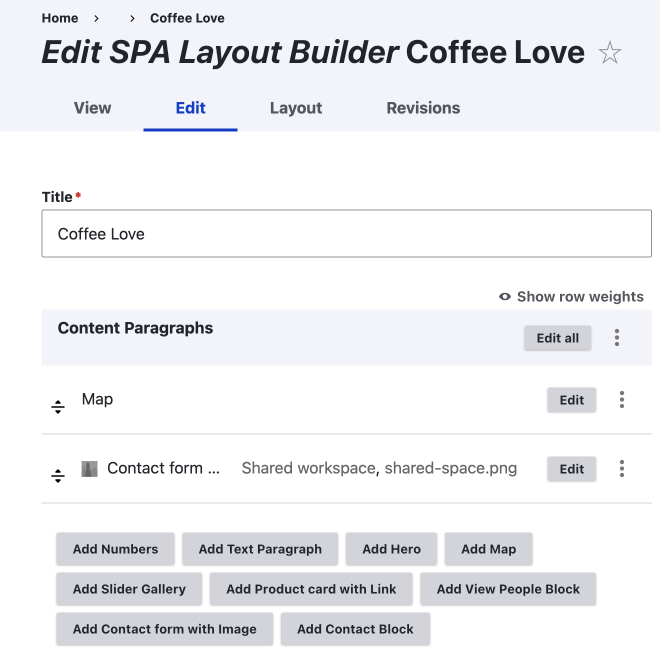
- Paragraphs on nodes that become blocks can only be edited and added via the Edit tab.
Views-based or dynamic components
The following are dynamic views-based. These are built using the Views module and have their own grouping in the Layout Builder UI. You can't create these types of components, but you need to add content to them, such as marking content as frontpage to show in the Articles/blog component. Depending on the set-up, sometimes, you can set the number of item to show.
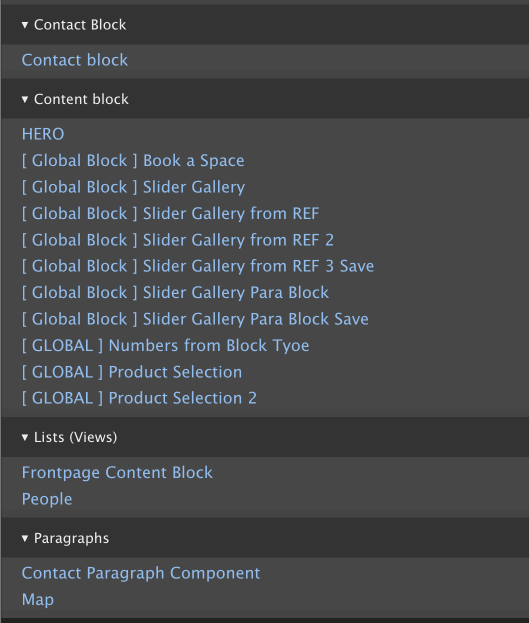
If you have Layout Builder restrictions installed and set up, you need to grant access for them to show up.
| Custom Block | Paragraph on node | |
|---|---|---|
| Articles/blog component | ✅ ️ | - |
| Team Component | ✅ | - |
Notes:
- Even though I have marked these as custom blocks, they are only available on the Layout Builder UI tab and therefore inline (This is counter to the note in the following generally notes).
- Carrying on that, since they are created dynamically, they are essentially global, in that they are available on any layout/page that is set up to use Layout Builder.
- Unlike other inline blocks, they can be use multiple times on one page, even though I am unsure why you would want to that.
Summary
In this part of the audit, I wanted to look at where we can create instances of a component.
To visualize this, I first marked whether they are a custom block set up or a paragraph attached to a content type.
This mainly affects what I called template components in the building components article; components where you can add or edit the content directly in the component. If you didn't read the building components article and want to find out more, you can explore the differences in how custom block and paragraph on node components are built in the building template components section of that article.
However, since creating an instance is a specialized task you don't really need to know how they are built and knowing where they are created is all we need to know. Through this exercise, we learnt that:
- Custom blocks can be created (and edited) as global instances on the block content page, or as an inline instance, they are created (and edited) directly in the layout.
- Paragraphs on nodes are created and edited on the Edit tab/page of the node.
- Views-based or dynamic components are created by adding relevant content to be shown in the component.
Or if we group where components can be created, we have 3 places; that is:
- On the layout tab of the page.
- On the edit tab of the page.
- For re-usable global template components on the block content page.
In the next part, we will be looking at how to add the components to a layout, before discussing a possible better solution to having 3 places to create component instances. Following the link below.